Cricut Tips and Tricks

Cricut on Wheels!

Do you have to move your heavy digital cutting machine every time you want to use it? I do, due to a current lack of space on my craft desk!
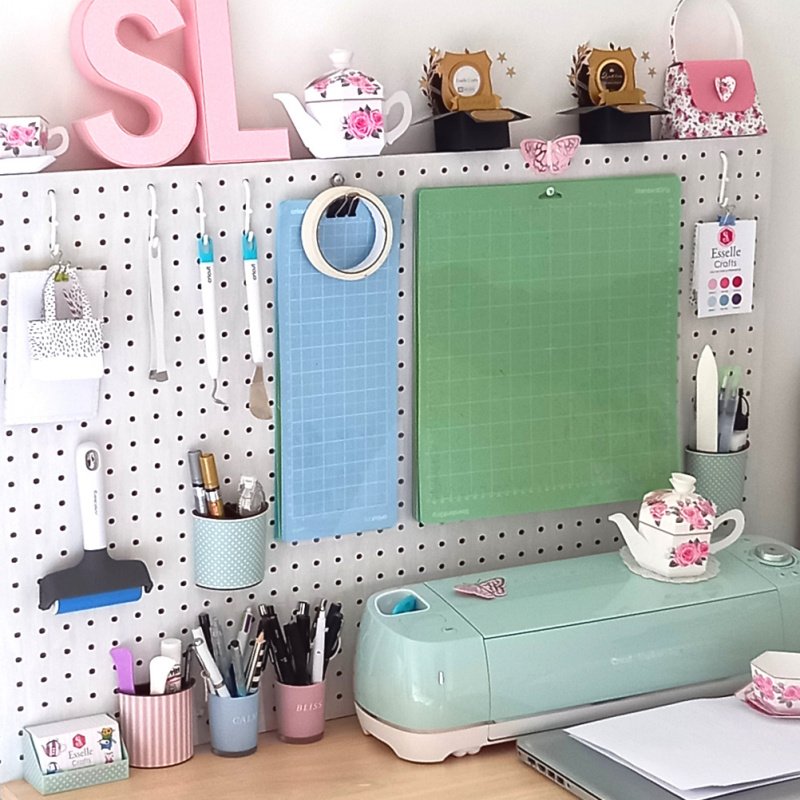
A beech wood desk with a Cricut Explore Air 2 digital cutting machine on top and a white pegboard with papercrafting accessories hanging from it

Up until now I’ve either had to pull my Cricut Explore forwards (not easy when it has rubber feet) or carefully lift it into position at the front of my desk so that there’s enough space behind it for the cutting mat to pass through without hitting my pegboard. 

I then discovered these amazing mini caster wheels!
 

Set of 4 White Mini Caster Wheels

They come with little self adhesive sticky pads that easily peel off, so all I had to do was simply attach the wheels to the base of my Cricut machine, one in each corner.
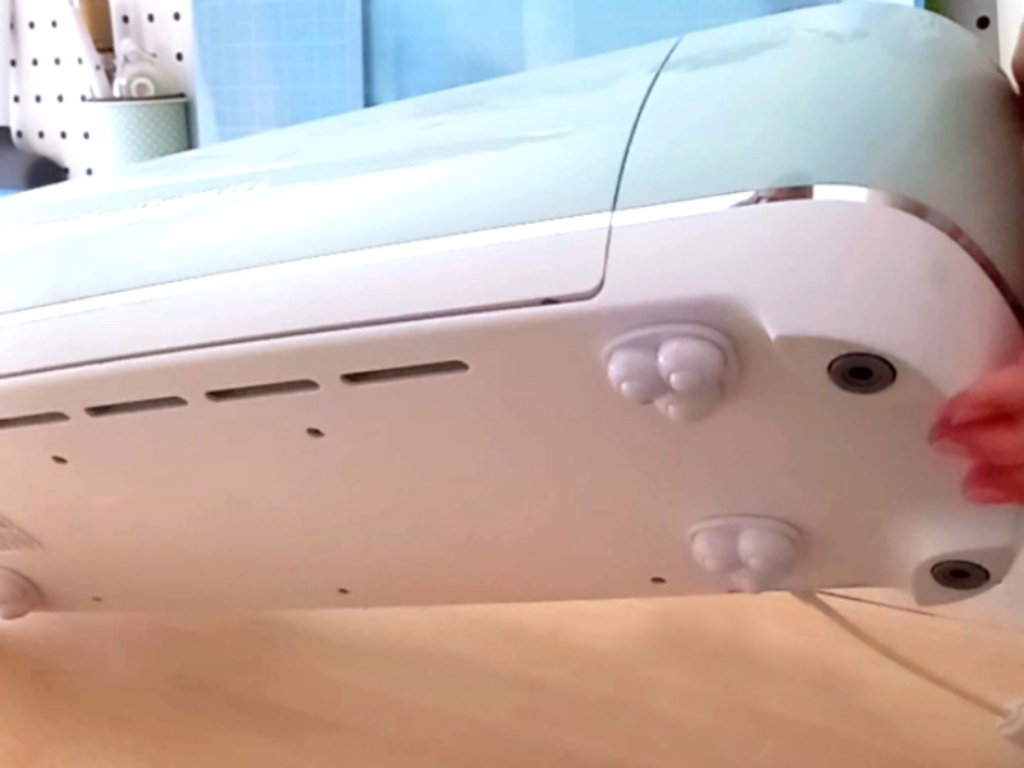
Mini Caster Wheels on the base of a Cricut Explore Air 2 digital cutting machine

Now my Cricut glides effortlessly, forwards and backwards, and I know that it’s not going to get damaged whenever I move it. Not only that, but it can also rotate 360° if I want it to!

Have you tried these little casters or something similar for your cutting machine? They really are a game-changer for me!

Happy crafting

Suzanne

Cricut Design Space

Cricut Design Space Upload Error

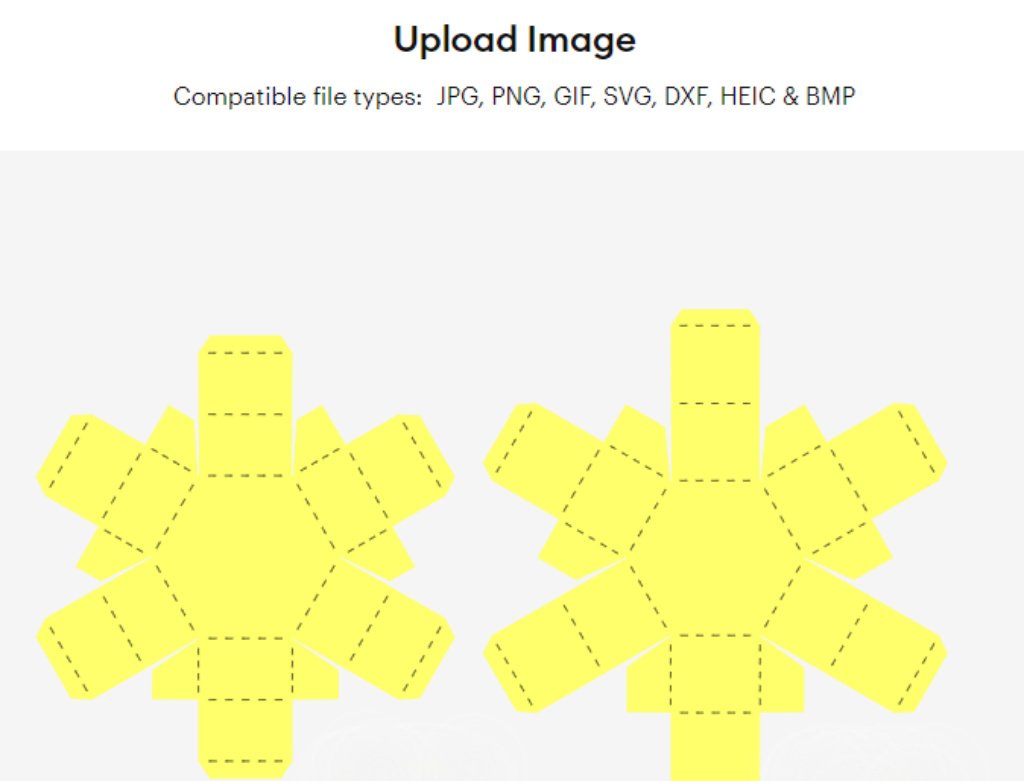
Following a recent update, Cricut Design Space is experiencing issues when uploading SVGs. It is showing a red warning bar at the top of the screen, worded something like this:

sodipodi:namedview Cricut Design Space Error

After doing some research about this ‘sodipodi:namedview’ error, there appears to be a few things that can resolve it. 

Firstly, the error is only occuring on the desktop version of Cricut Design Space, not on the mobile app. So, for a quick temporary fix, you can transfer the SVG that you want to use to your mobile device via email, then open the Cricut Design Space app on your mobile device and upload the SVG as usual. If you then open Cricut Design Space on your desktop again, you will see the SVG in your ‘Recent Uploads’.

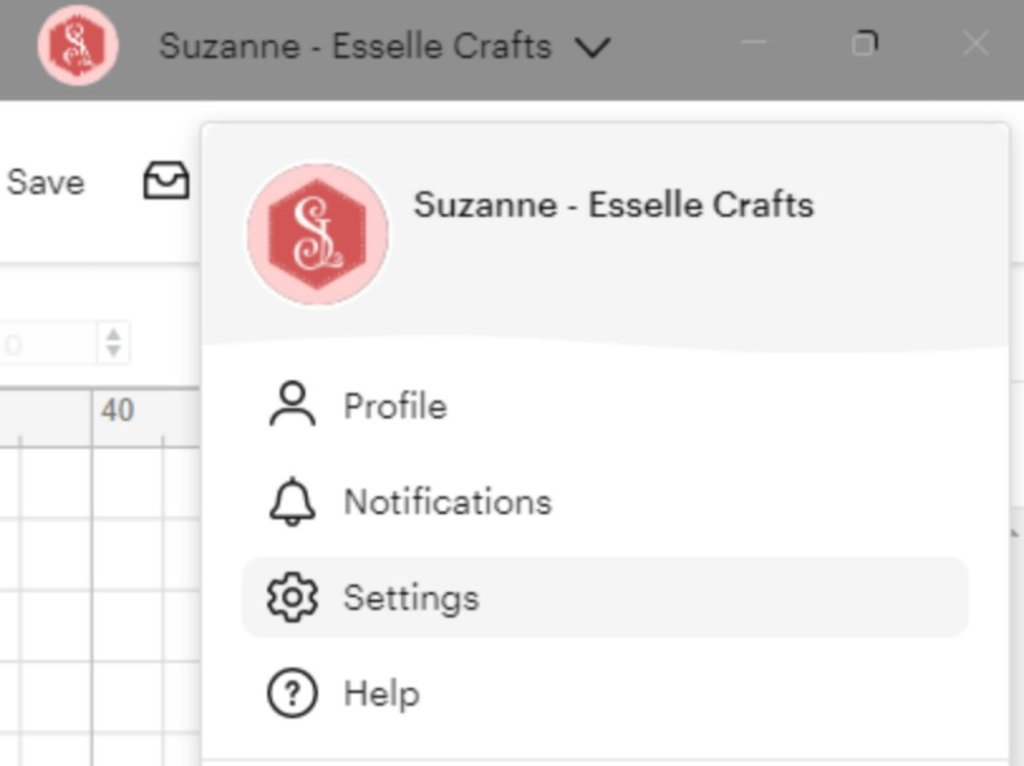
Secondly, (for a more permanent fix 🤞) your desktop version probably needs updating. This can take a bit of time, but to do this you need to click on your Cricut Design Space profile and select ‘Settings’.

Cricut Design Space Profile

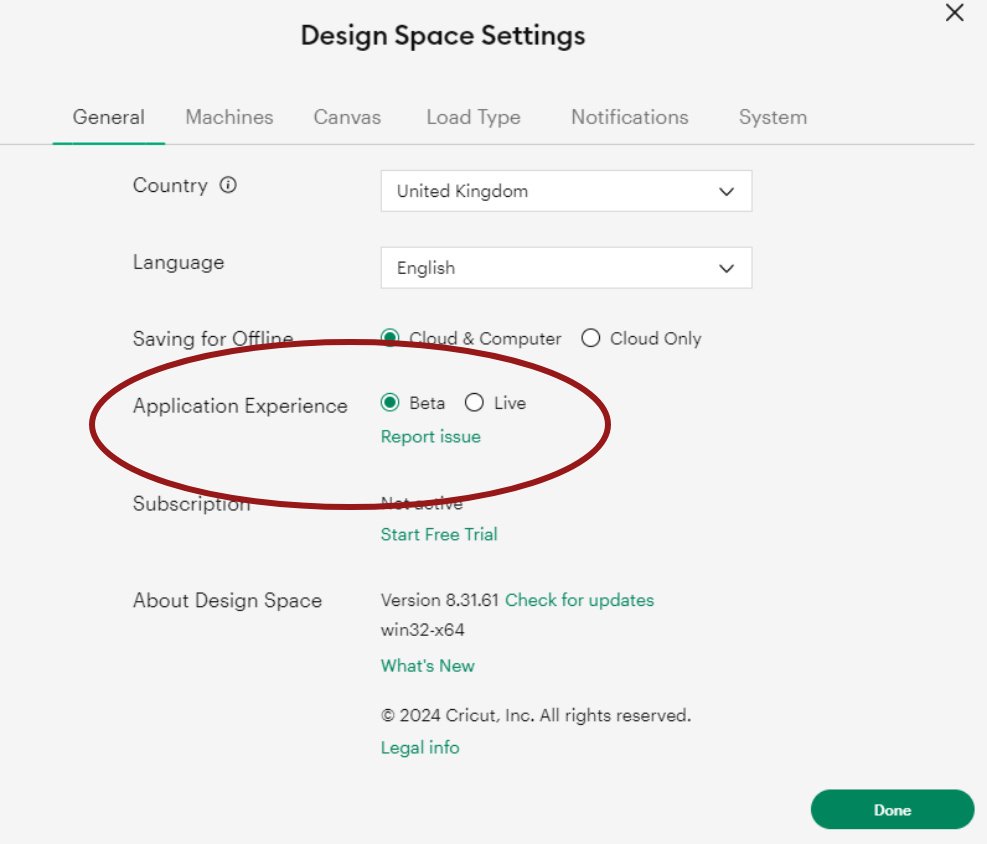
Then you need to check that ‘Beta’ is highlighted next to ‘Application Experience’.

Cricut Design Space Settings

Next you need to check that you have the most up-to-date version of Cricut Design Space – this needs to be version 8.31.61 (the previous version with the bug was 8.31.60 and I discovered a few more before that). Click ‘check for updates’ if yours shows anything other than Version 8.31.61

Cricut Design Space Settings

Cricut Design Space will then update and restart (you may also need to restart your computer to resolve any remaining issues), then hopefully you will be able to upload your SVGs in the usual way!

Hooray! 🎉

Cricut Design Space Upload Fixed

I really hope this helps to solve any problems you’re having with uploading your SVGs to Cricut Design Space. Do let me know how you get on with it 🙂

Suzanne