3D Papercraft Projects · Cricut Design Space · Favour Boxes · Graduation Gift Boxes

Pencil Favour Boxes

Easy to open, these super cute pencil favour boxes can be filled with sweets or small treats. Ideal for stationery addicts, teacher gifts, back to school gifts and so much more!

3D Paper Craft Pencil Favour Boxes for Gifting Small Treats

The template comes as an SVG cut file, as well as a plain black and white PDF if you prefer to cut out by hand. You can therefore choose your own colour scheme and easily resize it to suit your needs.
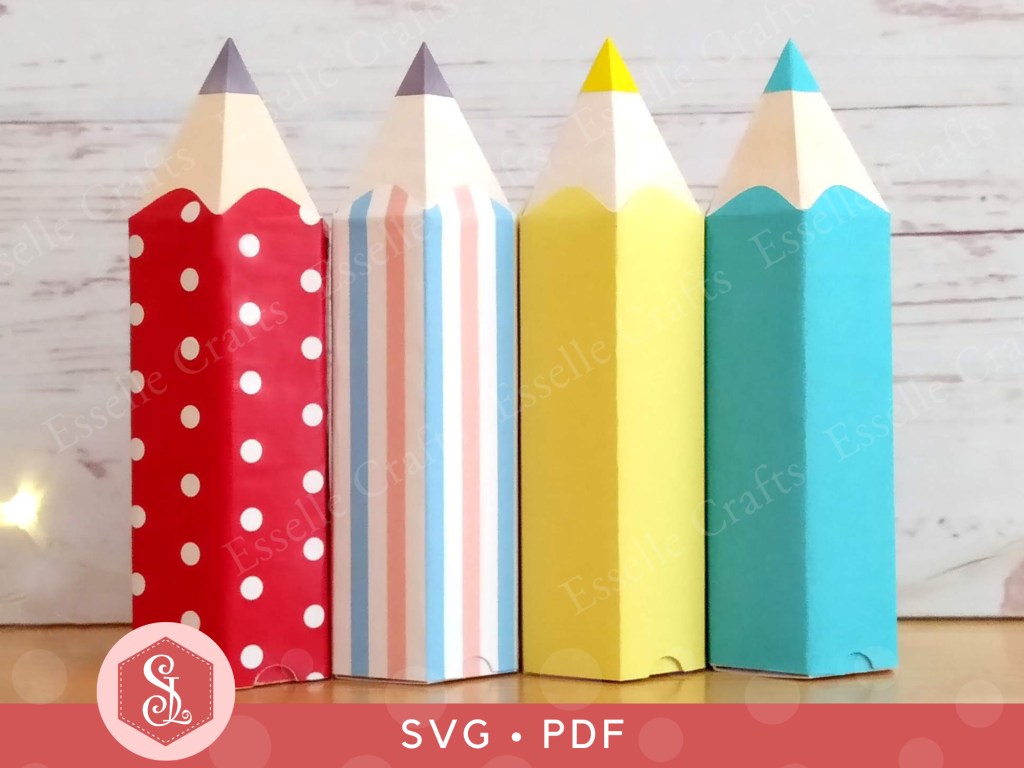
3D Paper Craft Pencil Favour Boxes for Gifting Small Treats

To make one, you will need:

* Pencil Favour Box template (SVG and PDF available)
* Computer and printer to print the PDF template and instructions
* Digital cutting machine
* Double sided cardstock (220-250gsm / 80-92lb recommended)
* Thinner card or paper for the pencil lead pieces (90-160gsm / 33-60lb recommended)
* Craft glue / double-sided tape

If you are not using a cutting machine, you will also need:

* Craft knife / scissors
* Scoring tool
* Ruler

Watch my video tutorial showing how to assemble the box and be sure to follow the tips below:

TIP 1 : This isn’t necessary, but I tried to follow the decorative pattern around the pencil by adding the panels in the same order that they had been cut out by my Cricut. I lined the panels up fairly closely like this in Design Space to try to keep as much of the pattern continuity as possible.

3D Paper Craft Pencil Favour Boxes for Gifting Small Treats

TIP 2 : Start with the shortest tab on the pencil point piece and glue it to the first section of the pencil. Make sure that the (red) curved edge is not stuck down.

3D Paper Craft Pencil Favour Boxes for Gifting Small Treats

TIP 3 : When gluing the two long tabs, interlock them and use a long pencil or pen to press against the join from the inside.
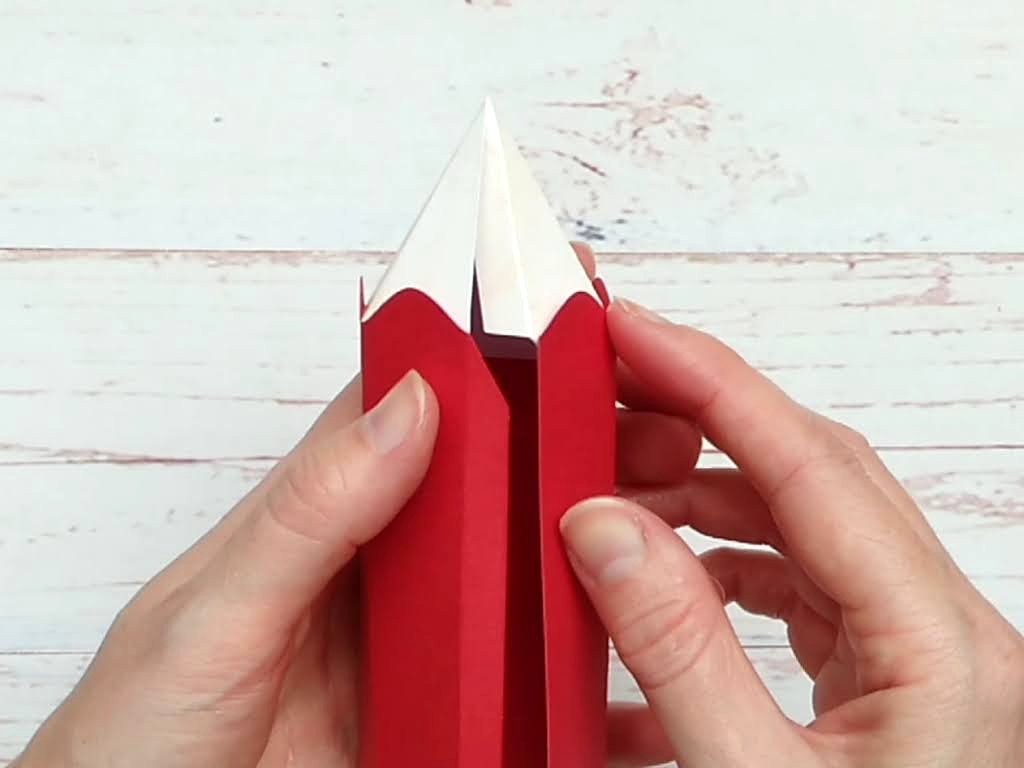
3D Paper Craft Pencil Favour Boxes for Gifting Small Treats

The pencil lead point and the lead circle on the end need to be cut out of thin card or paper. This will give it a nice smooth, flush finish. You can use a traditional pencil lead (dark grey) colour, or choose to make it a coloured pencil, matching the lead with the colour of the pencil box.

TIP 4 : Fold the lead point into shape before attaching it to the pencil, making sure the two edges join neatly without leaving a gap.
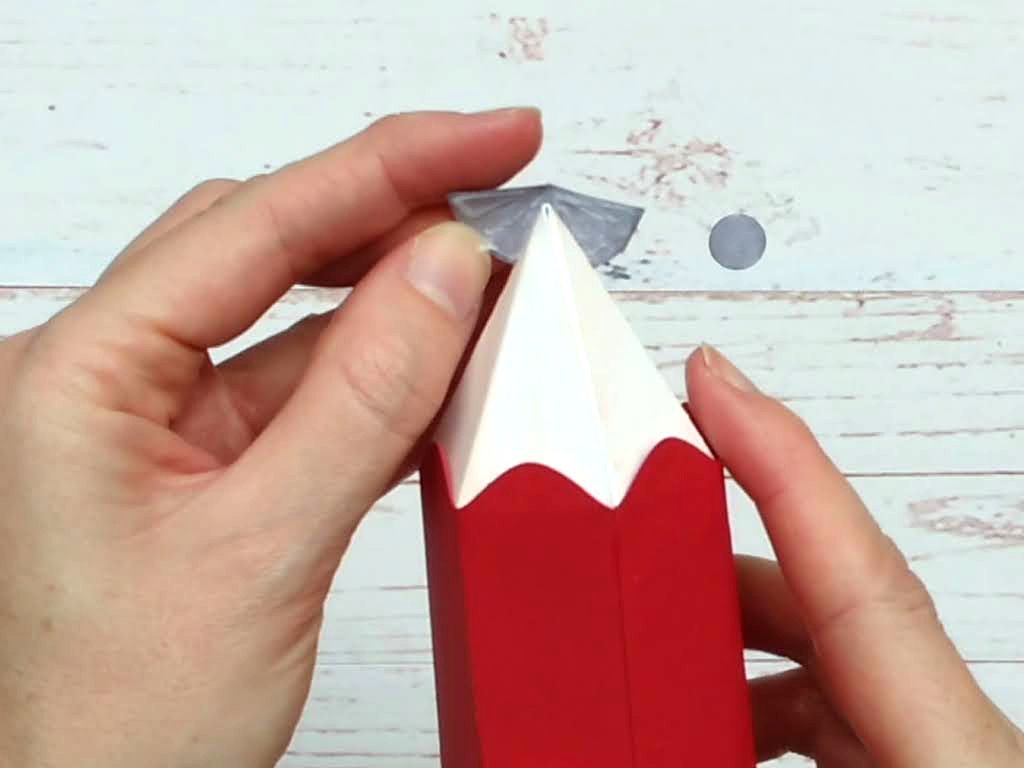
3D Paper Craft Pencil Favour Boxes for Gifting Small Treats

TIP 5 : Glue the lid insert to the underside of the lid, making sure that it is lined up centrally with an equal distance (approximately 1mm) around the outside.
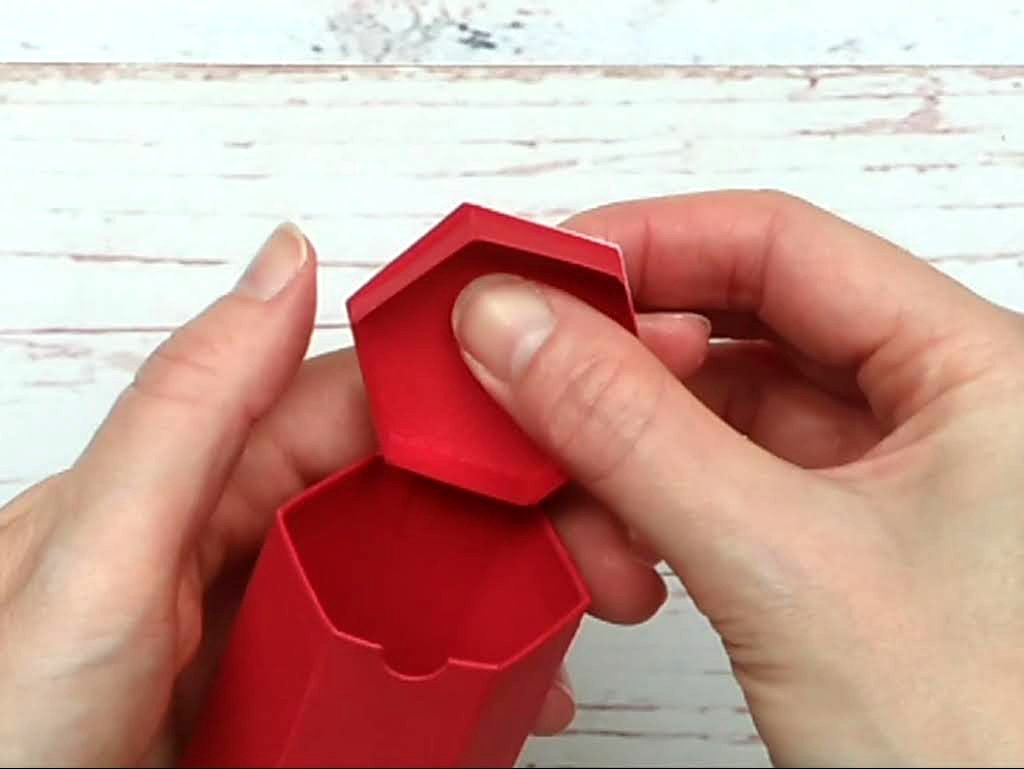
3D Paper Craft Pencil Favour Boxes for Gifting Small Treats

TIP 6 : If needed, glue one or two small tabs of matching cardstock to the front of the lid insert to help hold the lid closed. The need for this varies depending on the thickness of the cardstock used.

3D Paper Craft Pencil Favour Boxes for Gifting Small Treats

This really is a fabulous little favour box, and I love how mixing up the colours and patterns recreates how real pencils look when they are together in a pencil case or pencil pot!
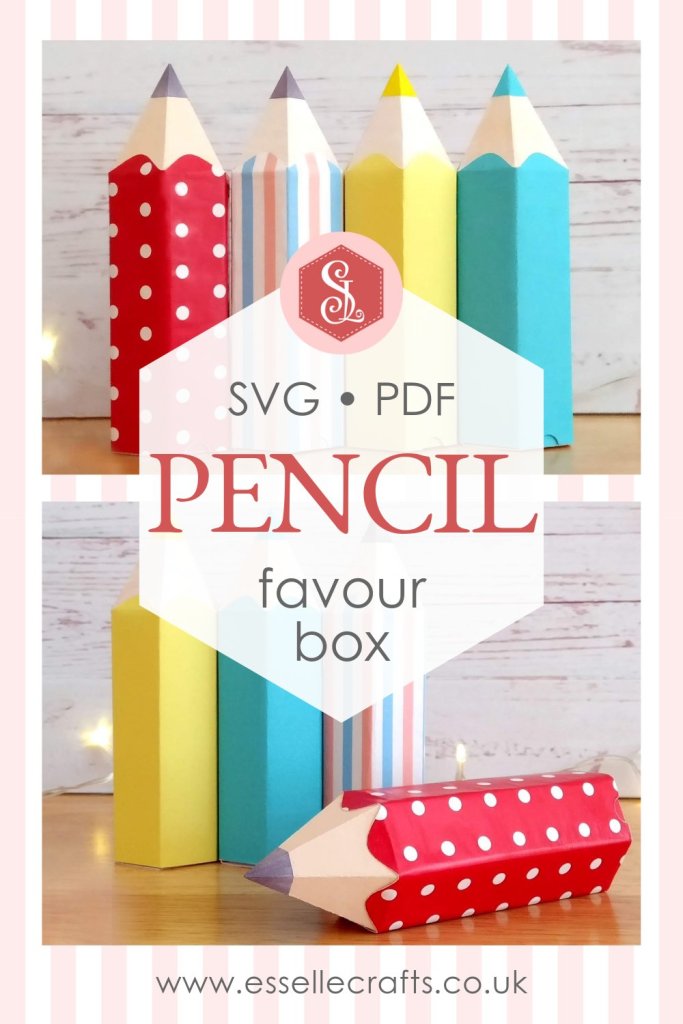
3D Paper Craft Pencil Favour Boxes Blog Post by Esselle Crafts

Happy crafting!
Suzanne

3D Papercraft Projects · Cricut Design Space · Gift Bags

Mini Gold Favour Bags

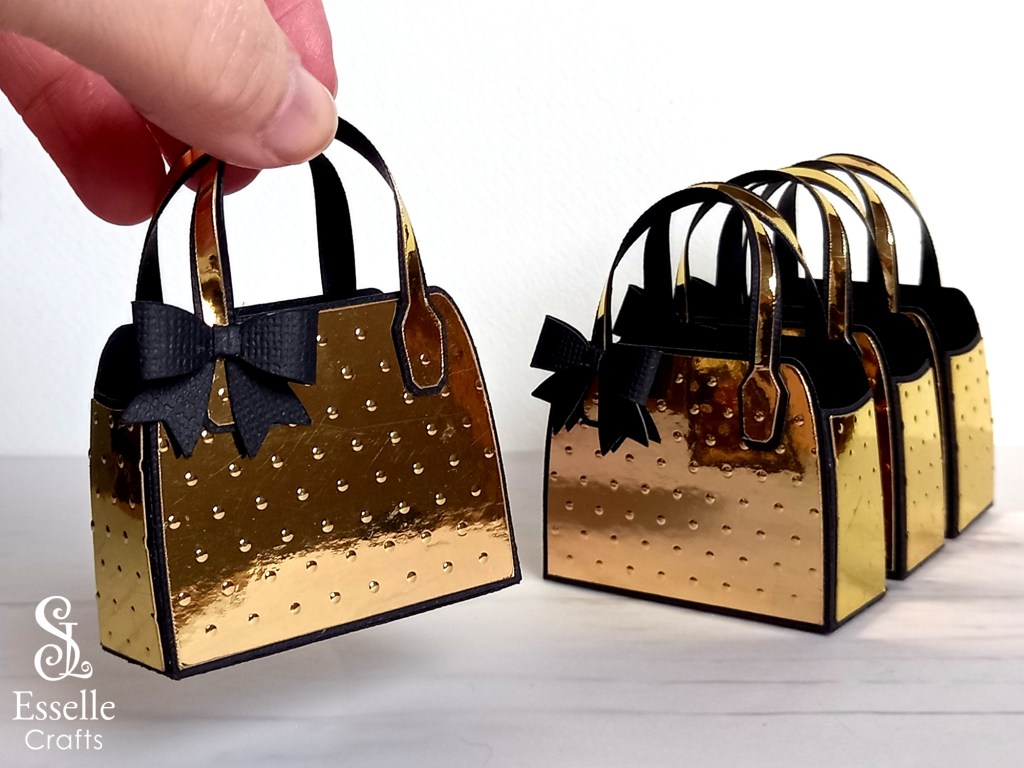
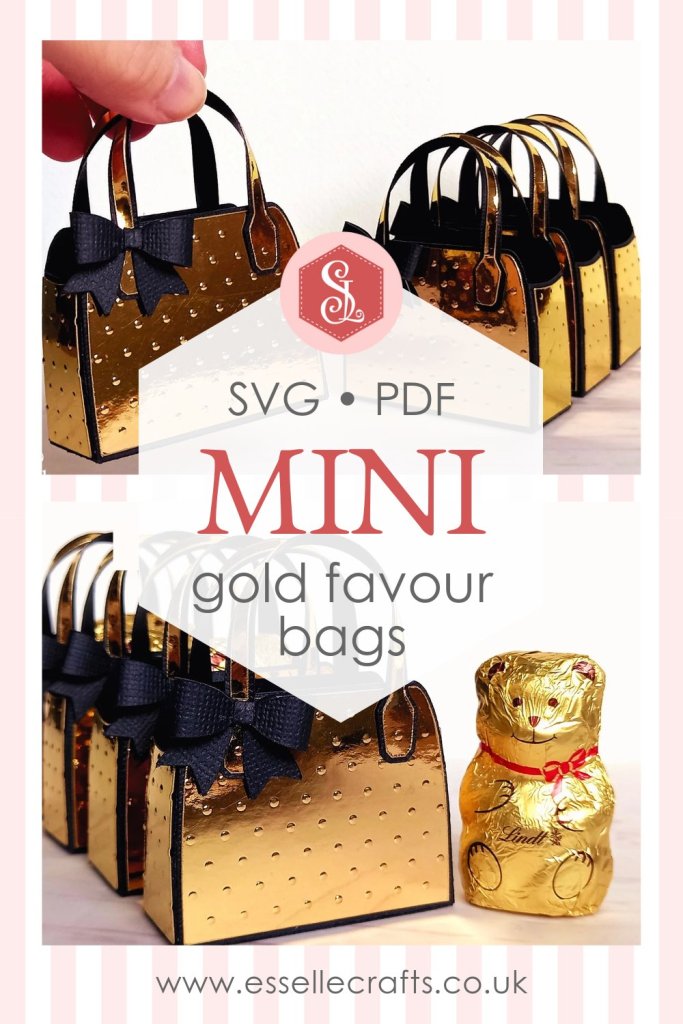
Using my butterfly favour bag template, I experimented with different sizes and created these cute mini black and gold bags!

Set of Four Mini Gold Paper Craft Favour Bags

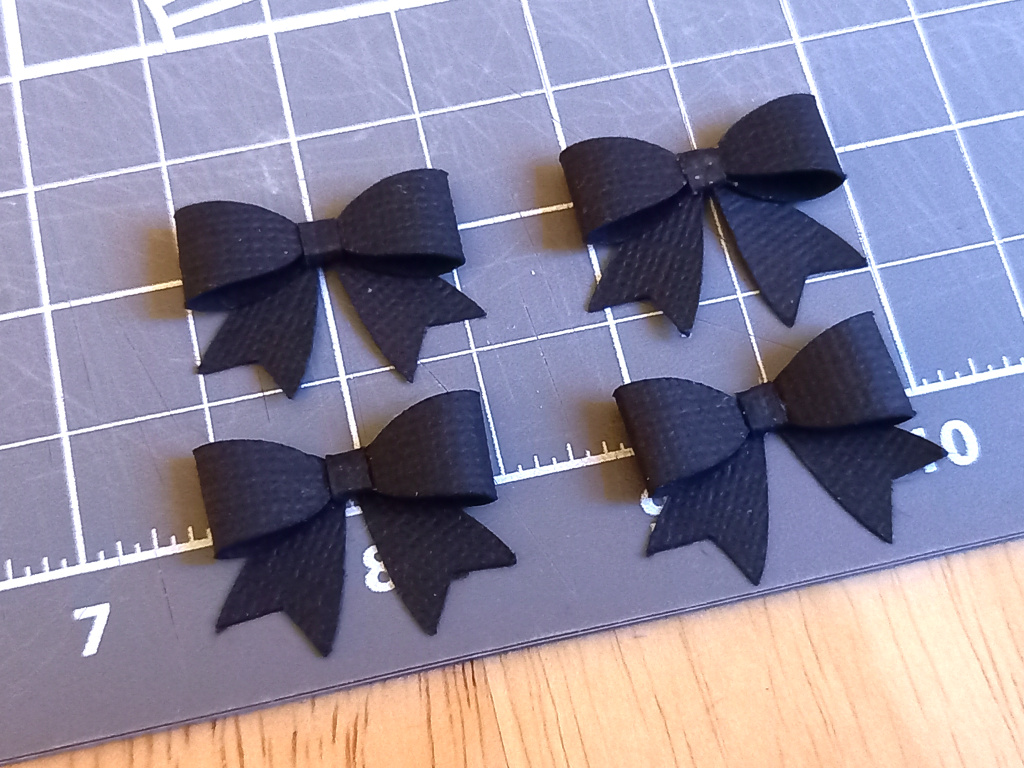
I used gold mirror card for the panels and, instead of using the butterfly, I embossed each of the panels with small polka dots. I kept the bows as an extra embellishment, despite the fact that they were so ridiculously tiny to make!

Set of Four Mini Black Paper Craft Bows

I reduced the size of the SVG template in Cricut Design Space to 17.5cm / 6.9″ (W ) making the measurements of the finished bags approximately 5.7cm (W ) x 2.3cm (D) x 7.4cm (H) / 2.25″ (W ) x / 0.9″ (D) x / 2.9″ (H).

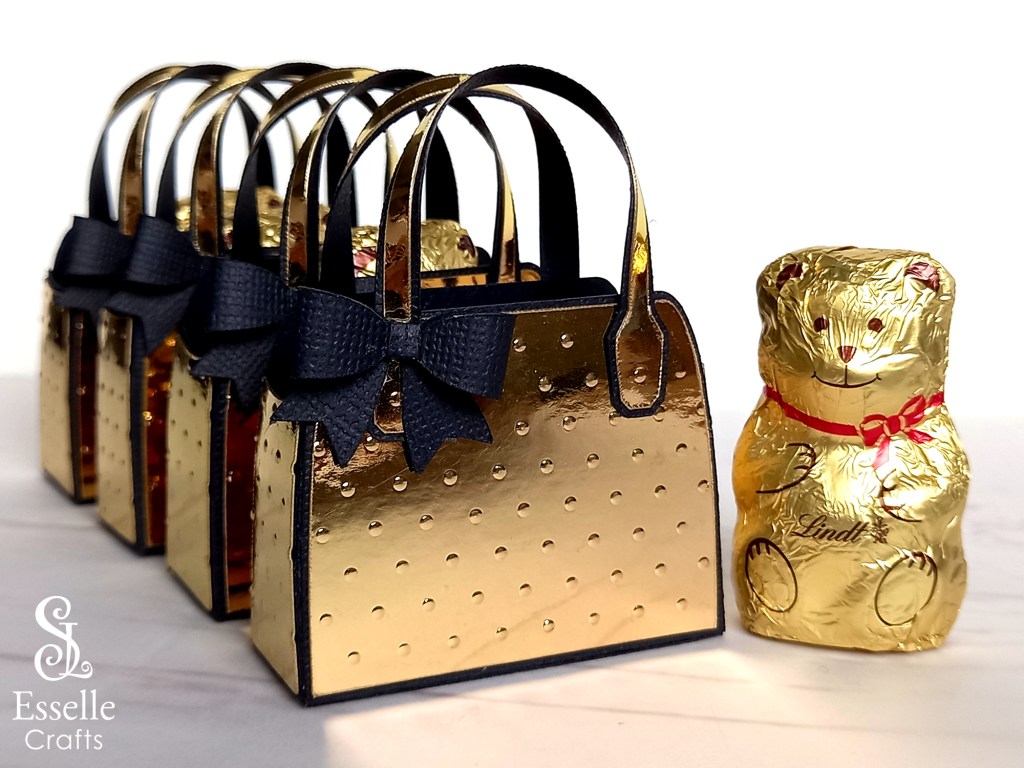
This made them the perfect size to hold a mini Lindt chocolate teddy bear!

Set of Four Mini Gold Paper Craft Favour Bags with Chocolate Lindt Teddy

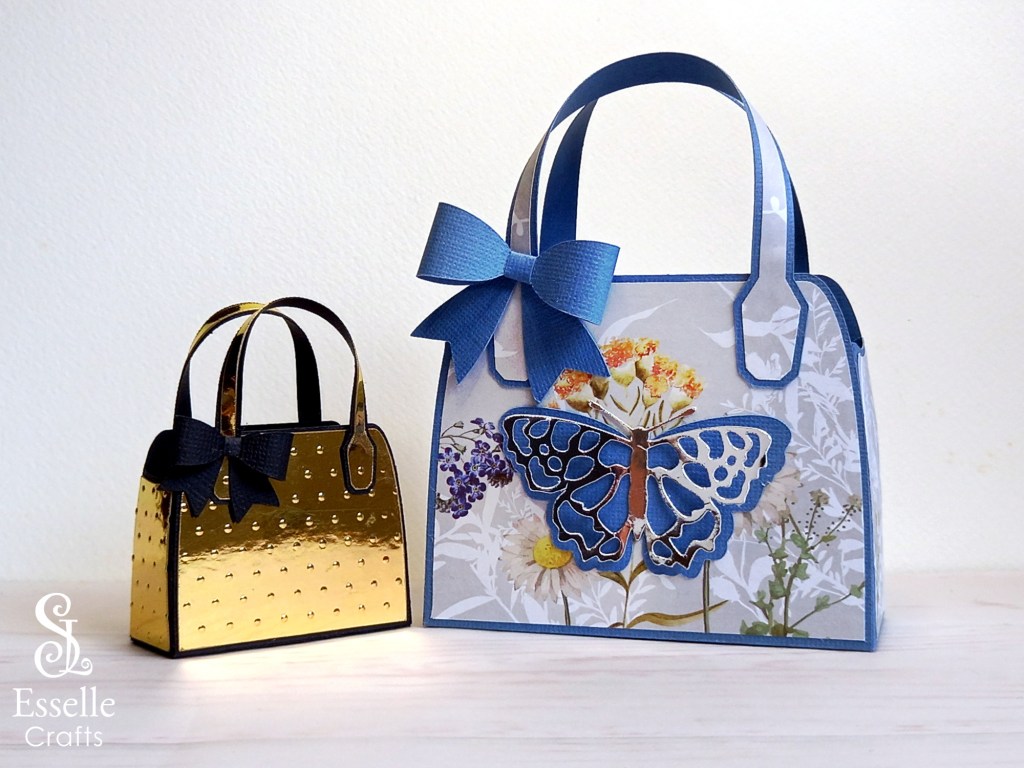
Here you can see the difference in size compared to the standard size bag that I made. 

Mini Gold Paper Craft Favour Bag and Butterfly Favour Bag

I think you’ll agree that these mini versions are super cute, but also super stylish. What little treats would you put inside a bag this small?

Mini Gold Favour Bags Blog by Esselle Crafts

Happy crafting
Suzanne

Cricut Design Space

How to use my Digital Files

In this post, I will be answering some of the most frequently asked questions about using my digital files. I hope you find this information useful, but if you still have any questions, feel free to contact me through my Etsy shop and I will do my best to answer them.

Cricut Explore Air 2

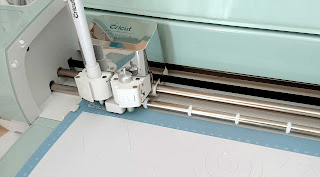
Please note – all of my SVG files are tested in Cricut Design Space and are cut out using my Cricut Explore Air 2. I also cut out smaller versions (using the small dashed cuts SVG file) on my Cricut Joy. Results may vary with other cutting machines.

I have downloaded a zip folder, so how do I access the files?

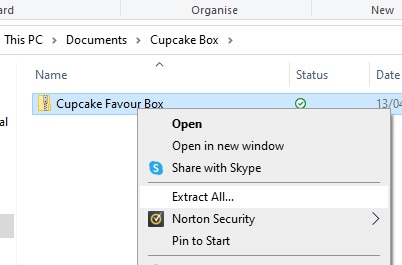
All of the files are compressed within a zip folder to make downloading easier. If you right click on the zip folder, then go to ‘Extract All’ this will save the files into a new, accessible folder.
 

How do I upload the SVG files into Cricut Design Space?

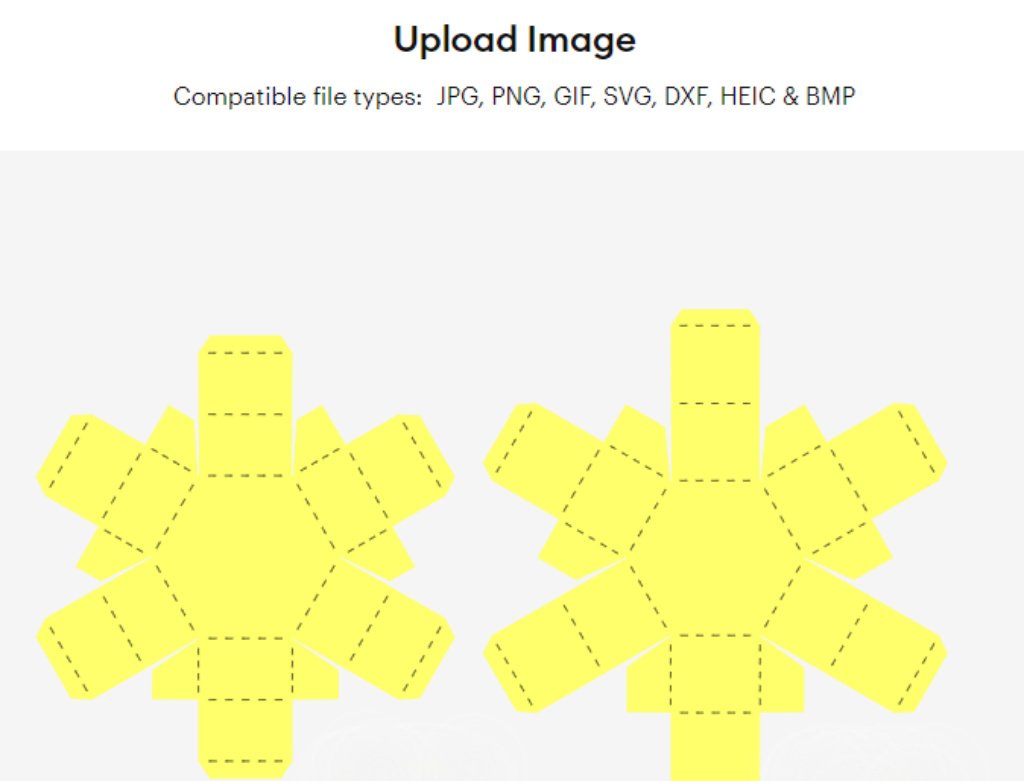
Once you have Cricut Design Space open, click ‘New’ to create a new blank canvas. Then click ‘Upload’, then ‘Upload Image’ and ‘Browse’. You will then need to find the file that you want to work with.

There are two different SVG files. Which one do I use?

Most of my templates come as two different versions. One has solid score lines (_solid.svg), for cutting machines that can score, and one has the more traditional dashed lines, which your machine will cut out as small perforations. Select the version that you want to use, then click ‘Upload’, then ‘Add to Canvas’.

How do I resize my SVG files? 

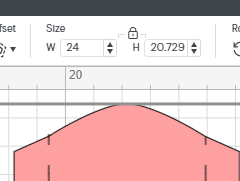
Firstly, make sure that everything on the canvas is selected, then either type in the measurement that you require in the size box (W ) or drag the resize arrow in the bottom right corner. Just make sure that the padlock icon is locked before you do this to ensure that all of the pieces stay in proportion. 

How do I work with solid score lines? 

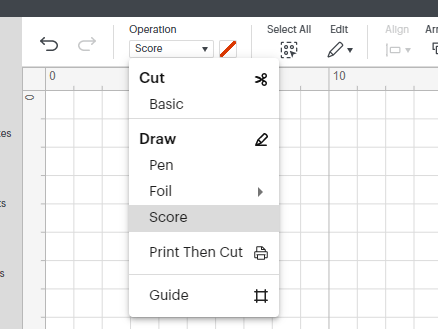
If you are using one of my _solid.svg files you will need to select each of the score lines, then go to ‘Operation’ and change them from ‘Basic Cut’ to ‘Score’.

If you don’t have a digital cutting machine that can score, use the other .svg file, which will cut the score lines as small perforations.

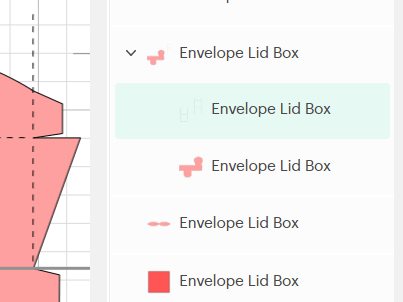
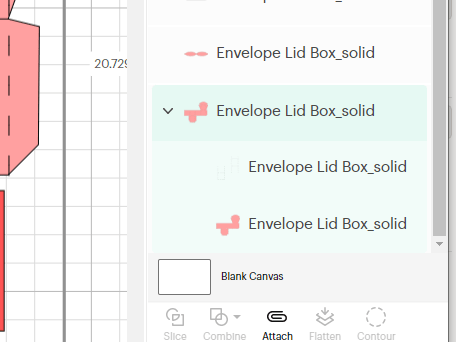
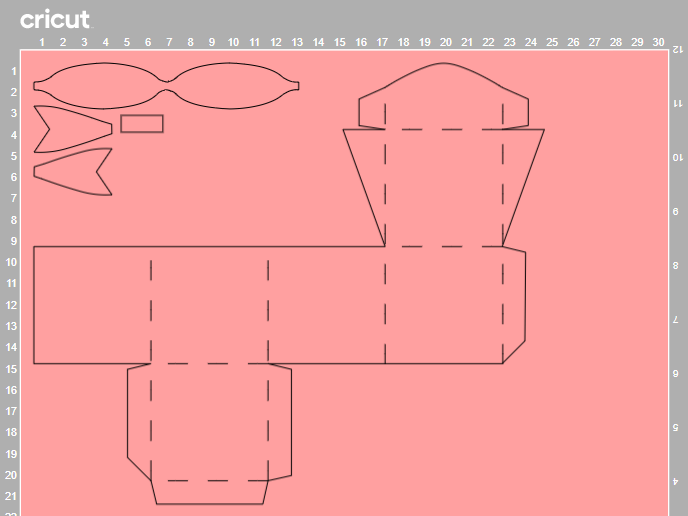
Why are my score lines showing up on a separate mat?

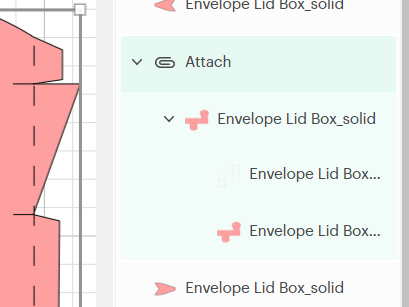
Firstly, you will need to select the score lines, together with the piece that they need to be attached to, then click ‘Attach’. 

This will ensure that the score lines are attached to the piece on the mat.

I have also created this short video tutorial, showing the entire process, which might help: 

I don’t have a digital cutting machine. Can I still make your products?

Yes, in most cases you can! The majority of my templates include at least one PDF template that can be printed and cut out by hand. Please check the individual listings in my Etsy shop for more information.

How do I resize the PDF template? 

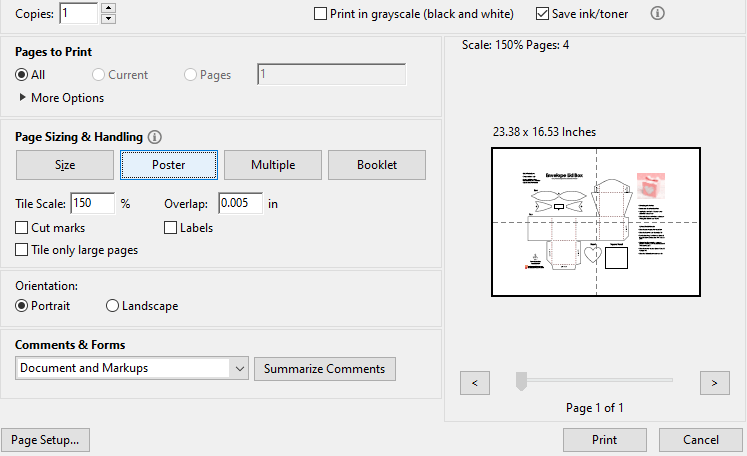
If you wish to reduce the size of the PDF template, click on ‘Custom Scale’ within the printer properties box and enter the value that you need (eg; 75%). 

If you wish to increase the size of the PDF template, click on ‘Poster’ and enter the value that you need (eg; 150%). This will spread the template over several pages, and will include an overlap. If you need the template a lot bigger, then you can take the file to a print shop.

What weight of cardstock do you recommend for your projects?

For construction, I recommend using about 240gsm cardstock (88lb), but generally anything around 220 – 250gsm (80 – 92lb) will work just fine. If you choose to make your project smaller, then a lighter (thinner) cardstock may be required. Similarly, if you choose to make your project bigger, then a heavier (thicker) cardstock may be required. For some of the decorative panels, a lighter card or paper 90 – 120gsm (30 – 44lb) will work best, but I will always state in the instructions if this differs.

Cricut Design Space

Cricut Design Space Upload Error

Following a recent update, Cricut Design Space is experiencing issues when uploading SVGs. It is showing a red warning bar at the top of the screen, worded something like this:

sodipodi:namedview Cricut Design Space Error

After doing some research about this ‘sodipodi:namedview’ error, there appears to be a few things that can resolve it. 

Firstly, the error is only occuring on the desktop version of Cricut Design Space, not on the mobile app. So, for a quick temporary fix, you can transfer the SVG that you want to use to your mobile device via email, then open the Cricut Design Space app on your mobile device and upload the SVG as usual. If you then open Cricut Design Space on your desktop again, you will see the SVG in your ‘Recent Uploads’.

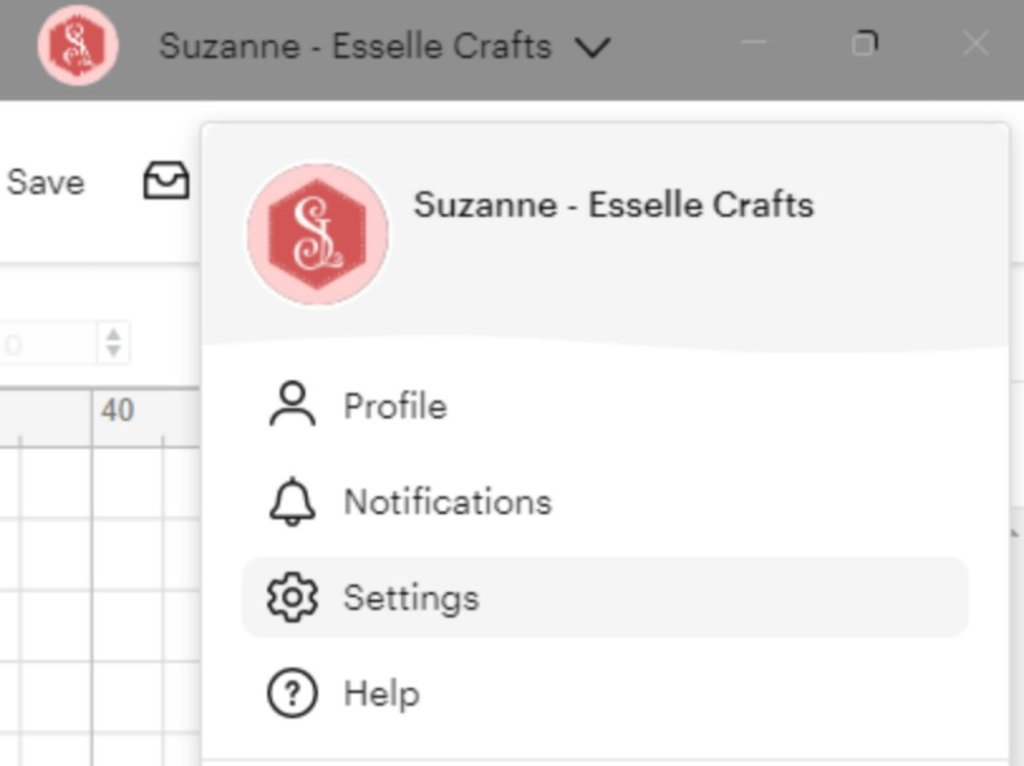
Secondly, (for a more permanent fix 🤞) your desktop version probably needs updating. This can take a bit of time, but to do this you need to click on your Cricut Design Space profile and select ‘Settings’.

Cricut Design Space Profile

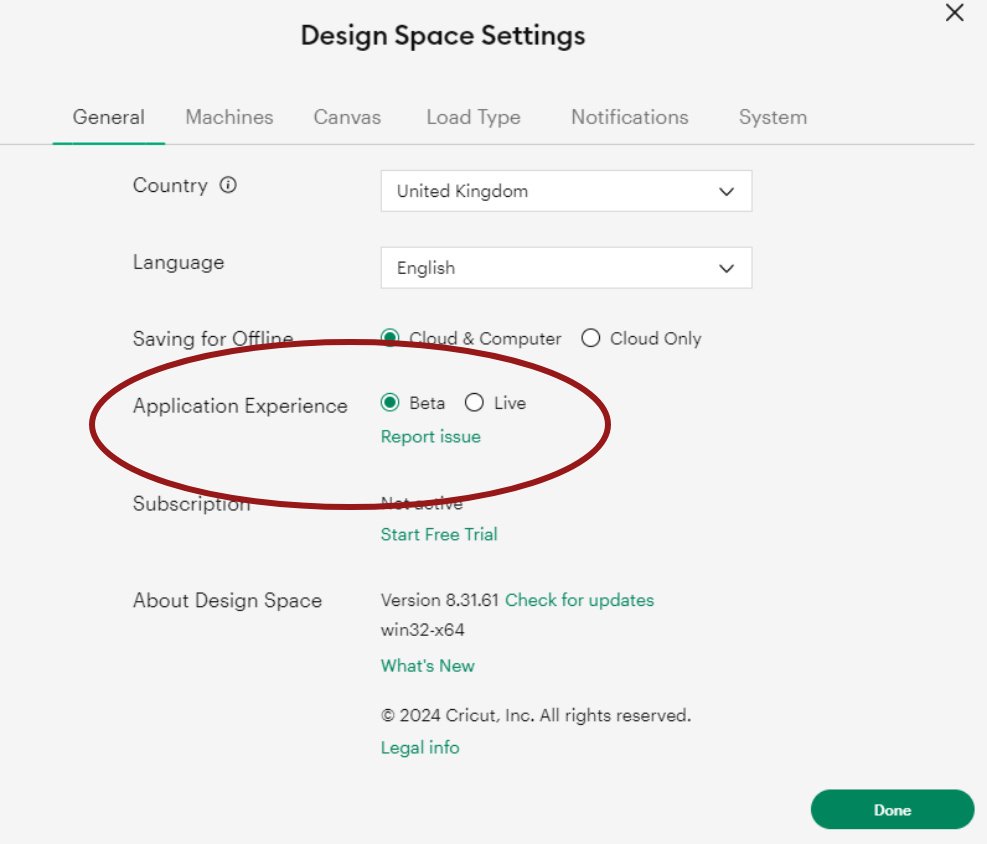
Then you need to check that ‘Beta’ is highlighted next to ‘Application Experience’.

Cricut Design Space Settings

Next you need to check that you have the most up-to-date version of Cricut Design Space – this needs to be version 8.31.61 (the previous version with the bug was 8.31.60 and I discovered a few more before that). Click ‘check for updates’ if yours shows anything other than Version 8.31.61

Cricut Design Space Settings

Cricut Design Space will then update and restart (you may also need to restart your computer to resolve any remaining issues), then hopefully you will be able to upload your SVGs in the usual way!

Hooray! 🎉

Cricut Design Space Upload Fixed

I really hope this helps to solve any problems you’re having with uploading your SVGs to Cricut Design Space. Do let me know how you get on with it 🙂

Suzanne